ZDNET’s key takeaways
- Android has a built-in magnifier to help you see the screen better.
- This feature has been around since Android 15.
- You access the feature via a button you add to the display.
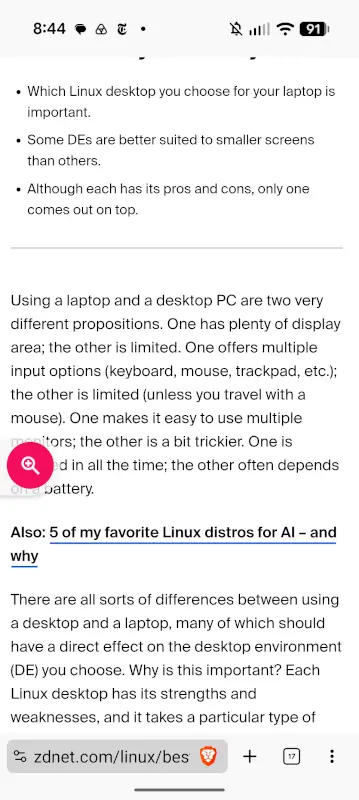
How many times have you been on your phone, wanted to read something (a piece of news, a website, etc.), only to find the text is too small and every effort to zoom in doesn’t work?
Also: 7 Android accessibility features that can make your life easier
This happens quite often when I’m viewing content in the Google News app — especially in the morning, when my eyes are still in “wake up” mode. It can be frustrating. And it’s not only text. Sometimes there’s an image I need to enlarge, but for whatever reason, pinch-to-zoom isn’t working on that particular screen.
More from ZDNET
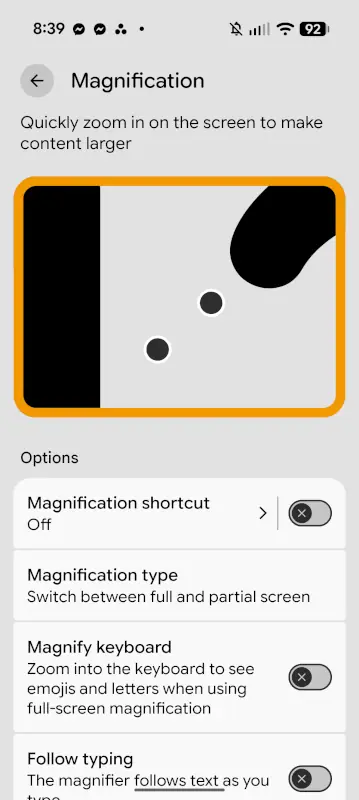
Fortunately, there’s an option you can enable to ensure you can always zoom in on your Android device, no matter what’s on the screen. The option is found in Accessibility and is aptly called Magnification. With this feature enabled, you can quickly zoom in on the screen to enlarge any displayed content. It doesn’t matter what’s on the screen or what app is showing the image, page, or text — Magnification will magnify it.
How Magnification works
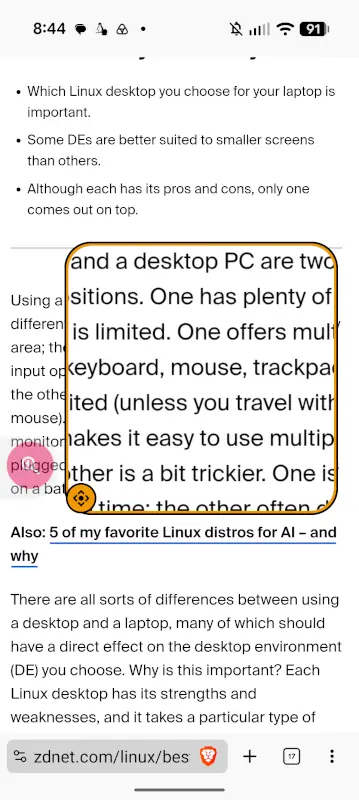
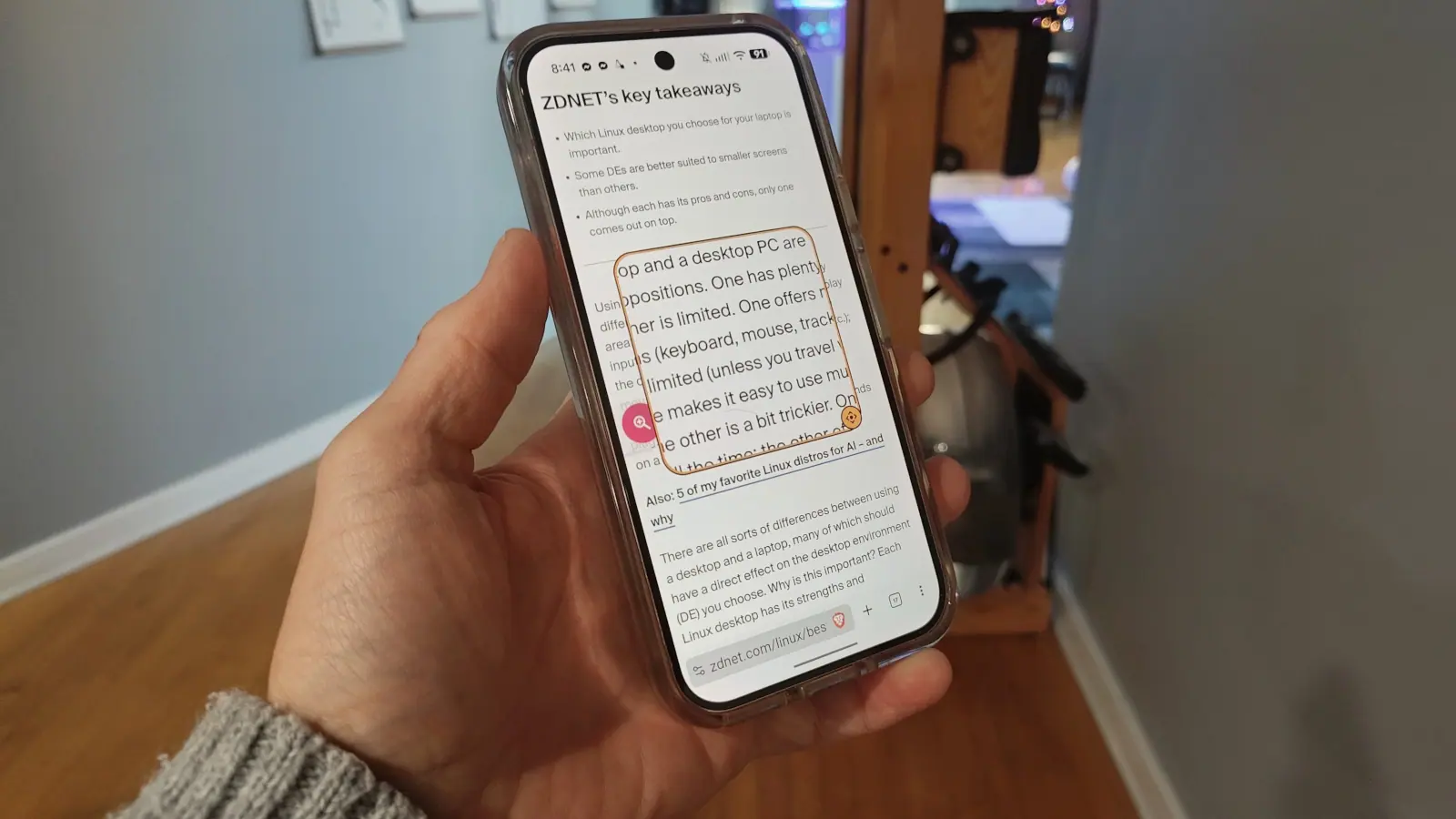
The Magnification feature is quite simple: once enabled, a magnifier shortcut appears on the screen. Tap that button, and whatever is on your screen will increase in size. It’s really that easy. One caveat: As long as the Magnification shortcut is enabled, the button remains on your screen. You can move the button up and down or to the left or right side of the display, but if you want the feature enabled, the button must remain.
The good news, however, is that the button does fade a bit, so it’s not glaring and in your face. You can still see it, but it gets just enough transparency that it doesn’t stand out all that much.
Also: Android is getting my favorite iOS tracking feature
OK, let’s enable Magnification.
Enabling the feature
Open Settings by dragging the Notification Shade down twice, then tapping the gear icon (or tapping Settings in the App Drawer). Where this is located depends on the Android version you’re using and your device. For example, on my Pixel 9 Pro, it’s in Settings > Accessibility > Magnification. On a RedMagic 12 Pro, it’s in Settings > Features > Accessibility. If you don’t find it right away, open Settings and search for Magnification.
Once you’ve found the Magnification option, tap the On/Off slider until it’s in the On position, and the Magnifier button will appear on your screen. Tap the button, and whatever is on the display will enlarge enough that you shouldn’t have any trouble reading it.
Here’s a little tip: After tapping the Magnification button, whatever’s been enlarged can be scrolled vertically, but not horizontally. Fortunately, there’s a way to ensure that you can read everything on the page.
Also: I use Google Magnifier to read tiny print without my glasses
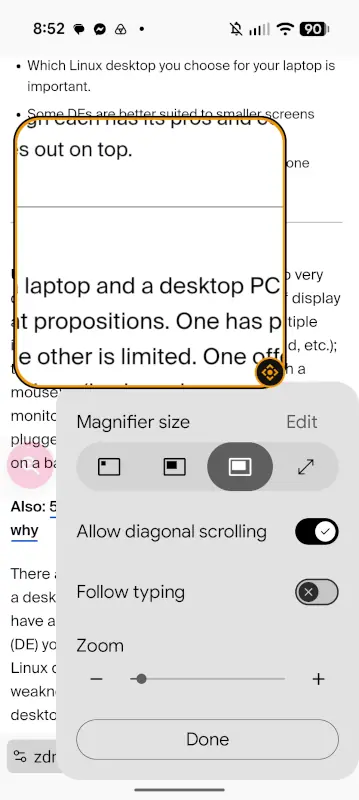
Tap the gear icon at the bottom right of the display to open the options pop-up. On this page, tap the “Magnifier size” icon that’s second from the right. This enables a movable magnifier you can place where you need it (kind of like a traditional magnifying glass). You can also change the size of the movable magnifier (by tapping one of the other “Magnifier size” buttons) as well as the size of the text when magnified (by dragging the bottom slider).
Also: RedMagic 12 Pro is the fastest Android phone I’ve ever seen
This feature has alleviated the early-morning frustration of having to squint (even with my glasses on) to read certain news sites. Give it a try and see if it doesn’t make your Android life a bit clearer.